Tray icon, global hotkey, text injection. Voice typing that lives in your OS.
Fluence runs in your Windows system tray, listens via a global hotkey, and injects context-aware transcripts directly into the active window. Zero clipboard pollution, works in any application.
Windows Setup Guide
Learn how to configure the desktop app or test the setup below
Desktop Installation Guide
Get the latest .exe installer or .msi package from the official GitHub Releases and run the installation wizard.
Once running, Fluence sits quietly in your system tray. Right-click the icon to adjust settings, view logs, or exit the application.
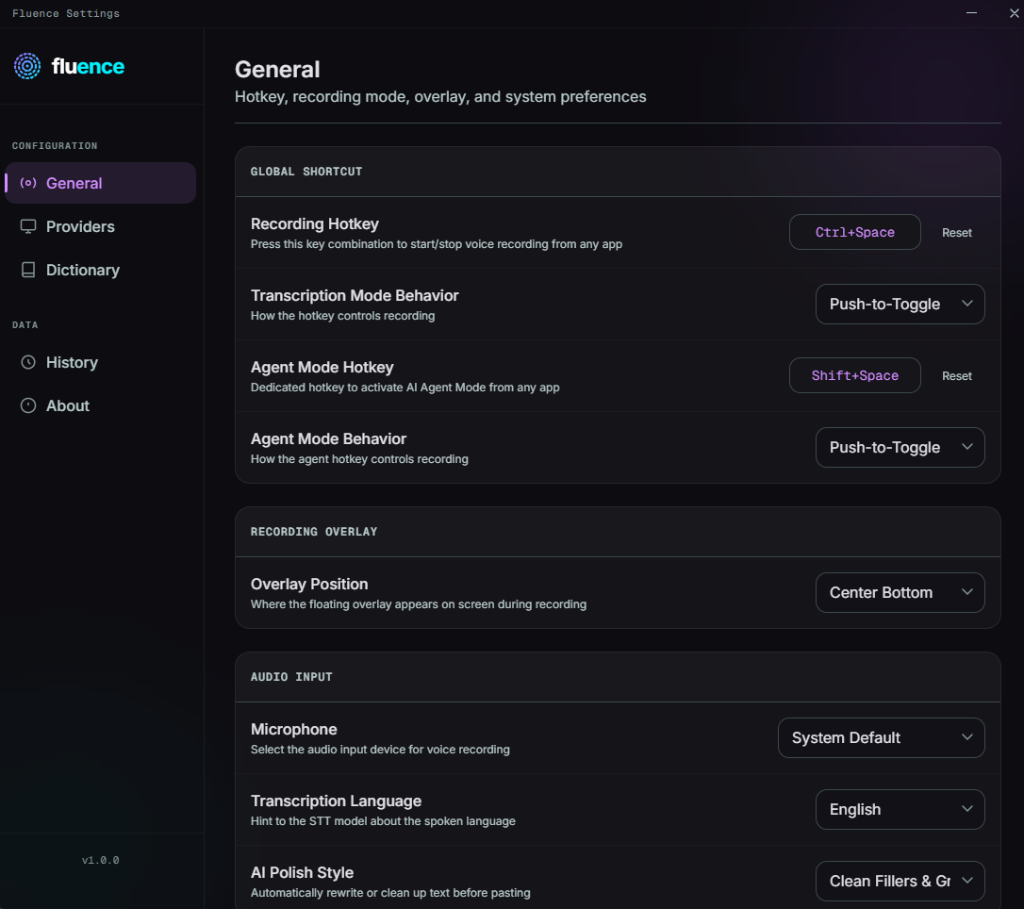
Press Ctrl + Shift + Space inside any application (such as Word, Discord, Chrome, or IDEs) to trigger dictation instantly.
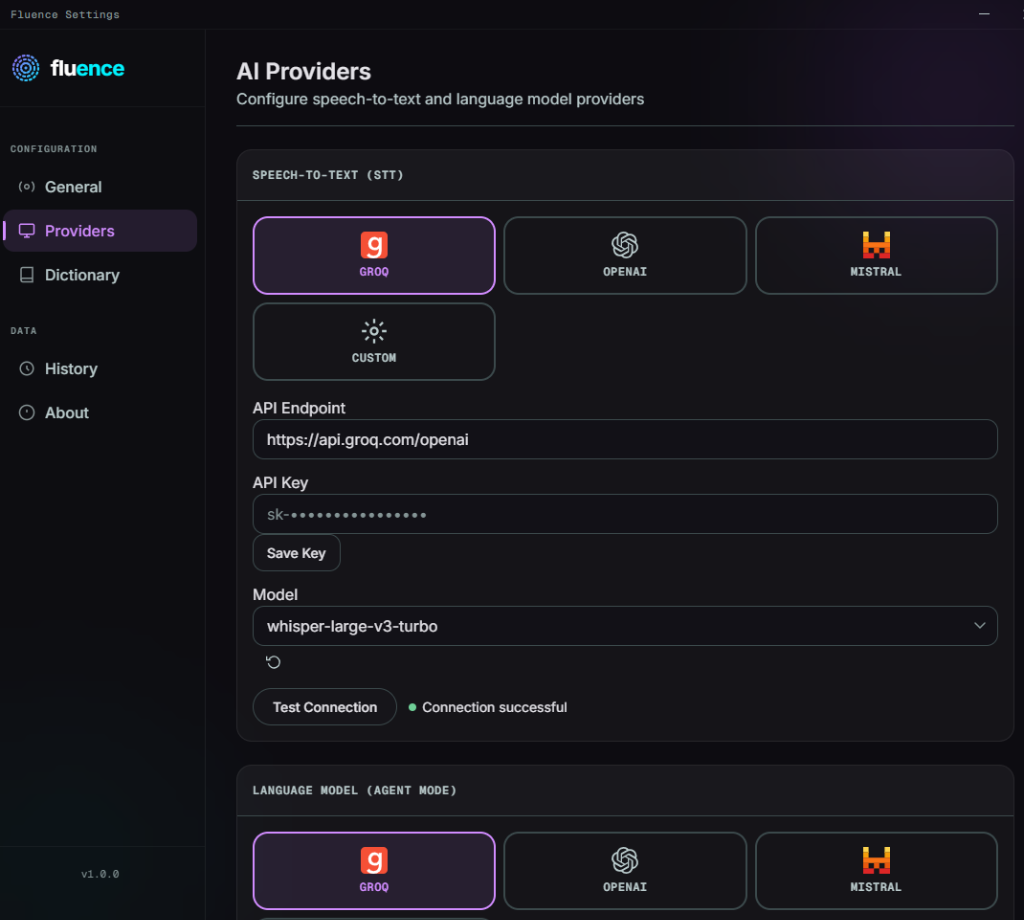
Paste your Groq or OpenAI key in the settings. It is stored securely in the native Windows Credential Manager with zero cloud telemetry.
A wave pill overlay appears on the bottom right of your screen during recording. The overlay is click-through to prevent focus loss.
Enable offline mode inside settings to download the SenseVoice model weights. Run local, private transcription with zero internet connectivity.
Welcome to fluence
Your AI-powered voice typing assistant for Windows. Speak naturally, and Fluence transcribes your voice into any application instantly.
Connect Your API Key
Fluence uses OpenAI-compatible APIs for cloud voice recognition. Add your API key below.
Set Your Hotkey
Choose a global keyboard shortcut to start recording. It will work inside any active app.
💡 Tip: Pressing the hotkey for over 800ms automatically opens AI Agent mode
Overlay Position
Choose where the recording waveform indicator will float on your desktop screen.
Test Your Setup
Let's verify everything works. Click the button to start a simulated recording.
You're All Set!
Fluence is running. Press Ctrl+Shift+Space inside any windows application to start universal dictation.